Files from
WhatsApp & the web.
Customer documents arrive with their print settings. Preview them and print from the same app, with nothing to download or open elsewhere.
EKCOPY DESKTOP · FOR PRINT & XEROX SHOPS
Download EkCopy Desktop for Windows. Bring print jobs, WhatsApp documents, printer settings and billing together on your shop’s computer.
Use EkCopy in your browser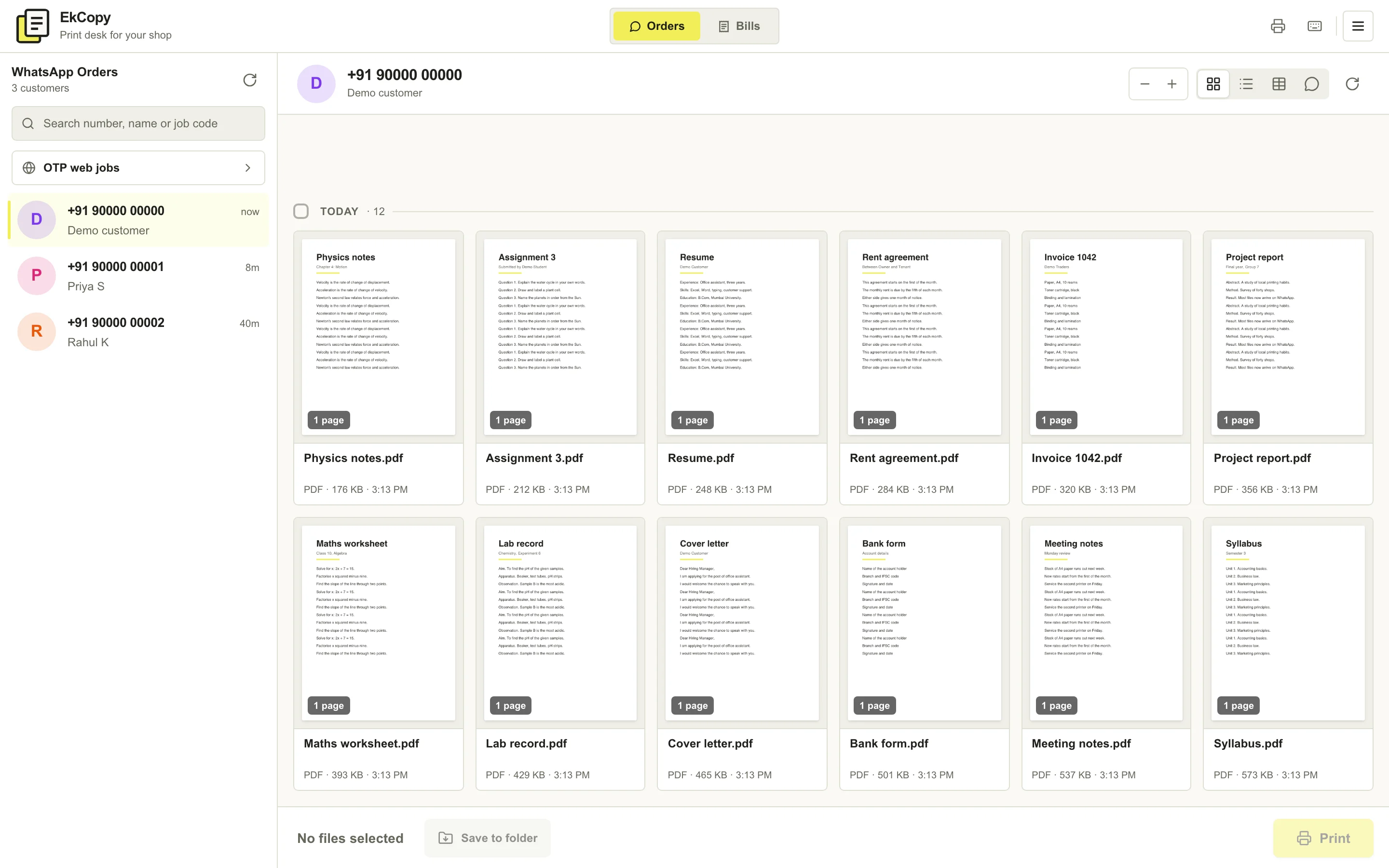
MORE THAN A DOWNLOAD
A desktop printing workspace for the documents and customers you handle every day.
Customer documents arrive with their print settings. Preview them and print from the same app, with nothing to download or open elsewhere.
Select printers connected to your Windows computer and configure black-and-white and colour routing. Check copies, pages and available layout options.
Use one shop account, shared shortcuts, automatic cost calculation, photo background removal and billing tools alongside your printing workflow. Keep your own controls on each computer and fetch the latest shop shortcuts when you’re ready. The installed app checks for updates as new releases become available.
BEFORE YOU INSTALL
Open this page on the Windows computer you use for printing. Download the installer, open the file and follow the setup wizard. Keep your printer connected and ready.
Open EkCopy Desktop and follow the WhatsApp sign-in instructions. Check your shop details. New shop accounts may need setup and approval before receiving jobs.
Select the printers you want to use for black-and-white and colour jobs. Review your settings, then try a sample document to confirm the layout and printer output before handling customer orders.
EkCopy Desktop is for shop owners and staff who manage printing on a Windows computer. Customers can upload and prepare documents in the web editor without installing the desktop app.
The installer on this page is for 64-bit Windows 10 and Windows 11. If you want to prepare documents from another device, use the web print editor. Do not use the Windows installer on a phone or another operating system.
The installed desktop app checks for updates and can download new releases. Keep it connected to the internet and follow any update prompts shown in the app.
The desktop app uses printers available to your Windows computer. Install the appropriate printer driver, select the device in the app and test a document. Printing support also depends on your printer and its driver.
THE NEXT PRINT STARTS HERE
FREE SETUP
Message us and we’ll help install the app, connect your printers and print your first order. Free.