THE EKCOPY PRINTING GUIDE
A little preparation. A better print.
Print PDFs, documents, presentations and images online, then collect them from a participating local shop. Here’s how to get your files ready and choose the right settings.
A LOOK INSIDE
From your file.
To your next print.
This is the actual EkCopy editor: add documents from your device or WhatsApp, then prepare your print order.
Start with your documents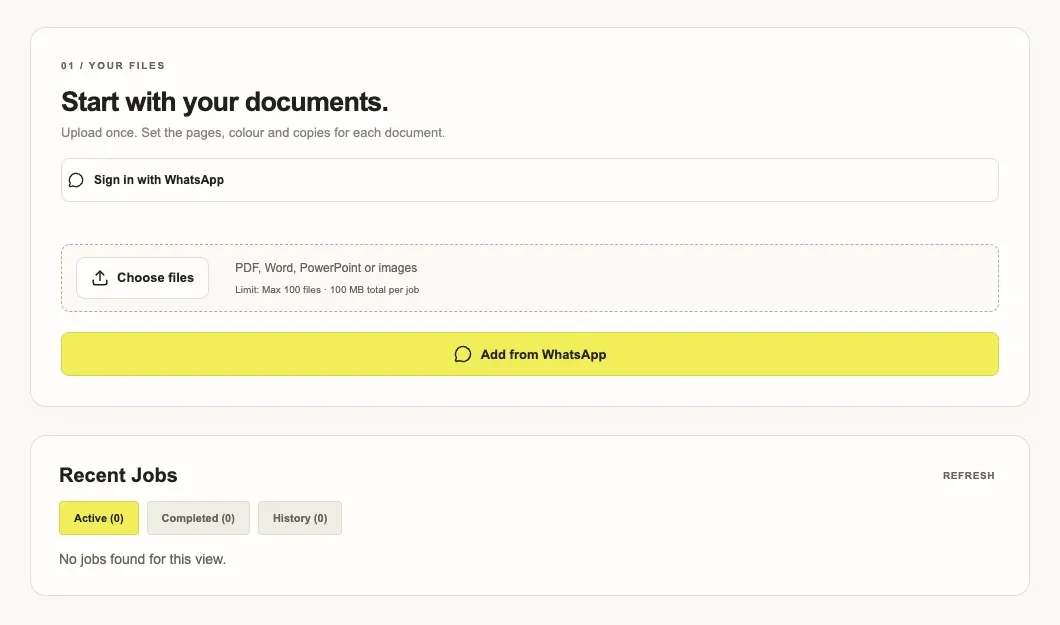
Start with a file that looks right.
The editor accepts PDF, Word (.doc and .docx), PowerPoint (.ppt and .pptx), and common image formats such as JPG and PNG. Files that need conversion are prepared before you can submit them.
PDF is a useful choice when preserving page layout matters. For Word documents or presentations, check the preview after conversion, especially around page breaks, tables, diagrams and unusual fonts. Use a clear source image when printing a scan or photograph.
Choose the pages, copies and colour.
Select all pages or use a custom page range when available. Double-check that the numbers match the pages in your document, particularly if it includes a cover or a contents page.
Black & white or colour
Black and white works well for text. Choose colour when charts, illustrations or other details rely on it.
Single or double sided
Use the available print-side options for your document. Check any submission requirements before choosing double-sided printing.
Orientation & layout
Check portrait or landscape orientation, scaling and pages per sheet. More pages per sheet can make small text harder to read.
Number of copies
Set the required copies for each file. Review the full order when uploading several documents together.
Preview, choose a shop and review.
Open the file preview and check your settings. Select a participating print shop that is convenient for collection. Pricing depends on the shop and your order; review the displayed print cost and any applicable platform fee before submitting.
Confirm special requirements directly with the shop, such as a particular paper stock, binding, finishing or a collection deadline. These should not be assumed from an online document order.
Submit your order and plan collection.
Review your files and location one last time, then submit the job. Follow the order status in EkCopy and keep your order details available when you visit the shop.
Printing and collection depend on the selected shop’s availability. If timing is important, contact the shop to confirm when your documents will be ready.
Is online printing the same as photocopying?
Online printing starts with a digital file. Photocopying starts with a physical original. If you are searching for a Xerox shop to copy an original document, ask the shop about that service directly. EkCopy helps prepare and submit digital document print jobs.
What should I do if my document looks different after conversion?
Check the original file, export it to PDF in the application where you created it, and upload that PDF. Review the new preview before submitting. If the problem continues, contact EkCopy with a description of the issue.
Can I print only part of a PDF?
Use the custom page range option when it is available for your document. Check the selected pages and the preview before submitting your job so you do not print pages you do not need.
YOUR NEXT PAGE STARTS HERE
Good things
deserve a hard copy.
Upload. Set it up. Pick it up.